On Spend, tap Upload receipt.
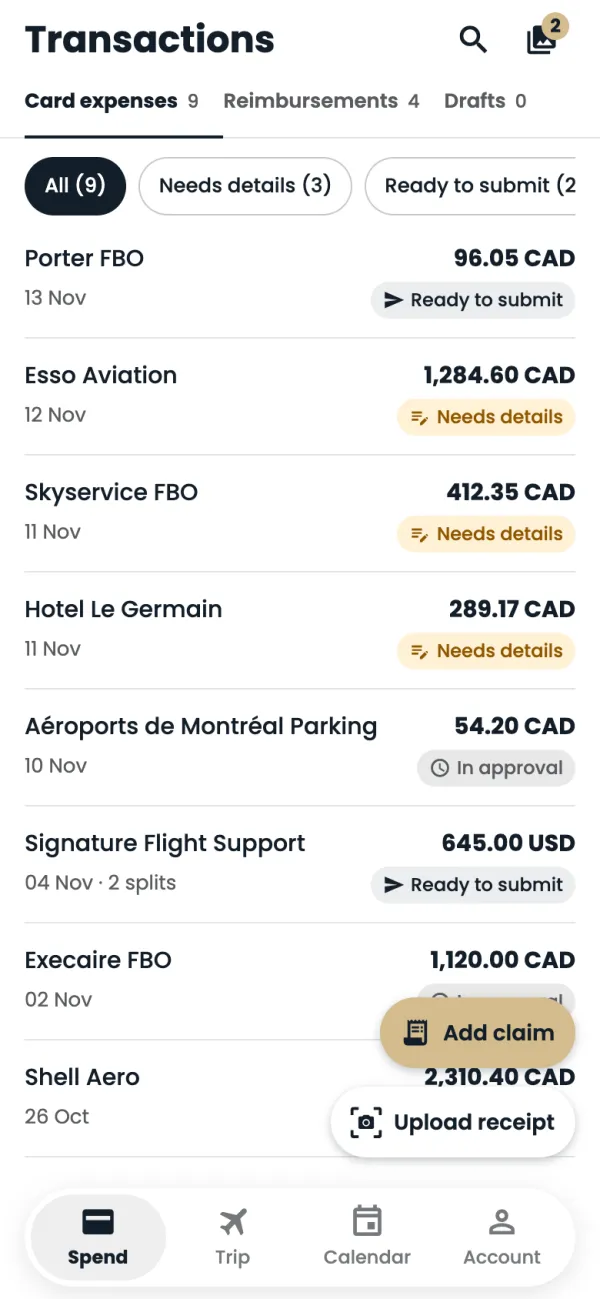
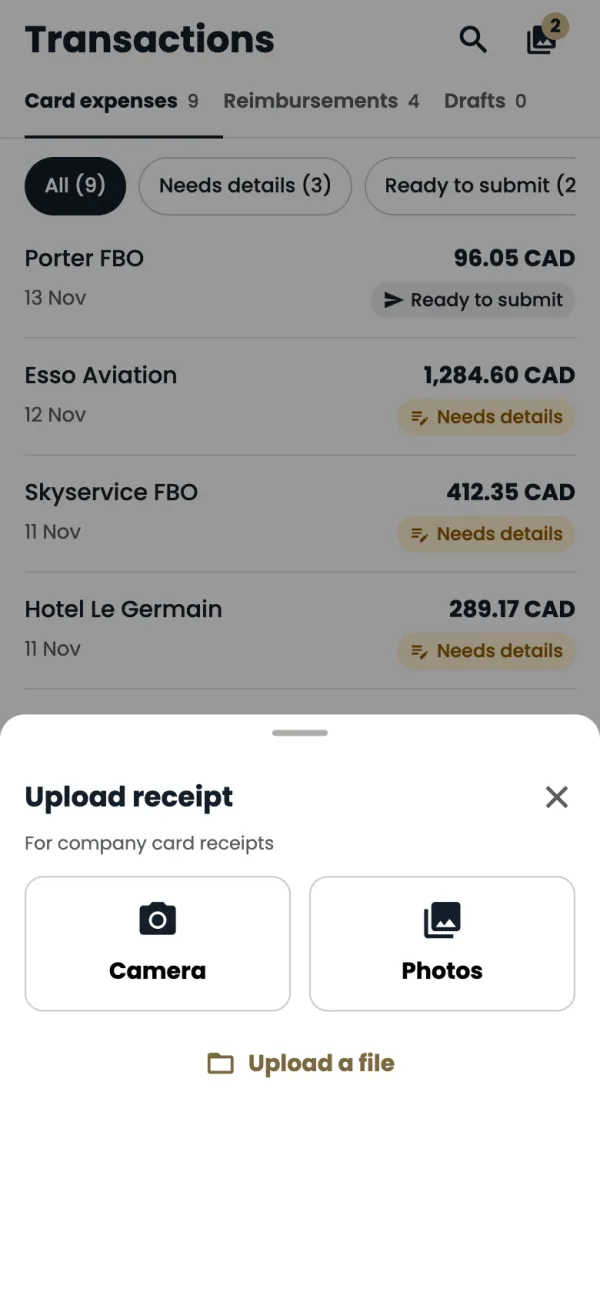
Choose Camera to take a photo, Photos for one you already took, or Upload a file for a PDF or image.
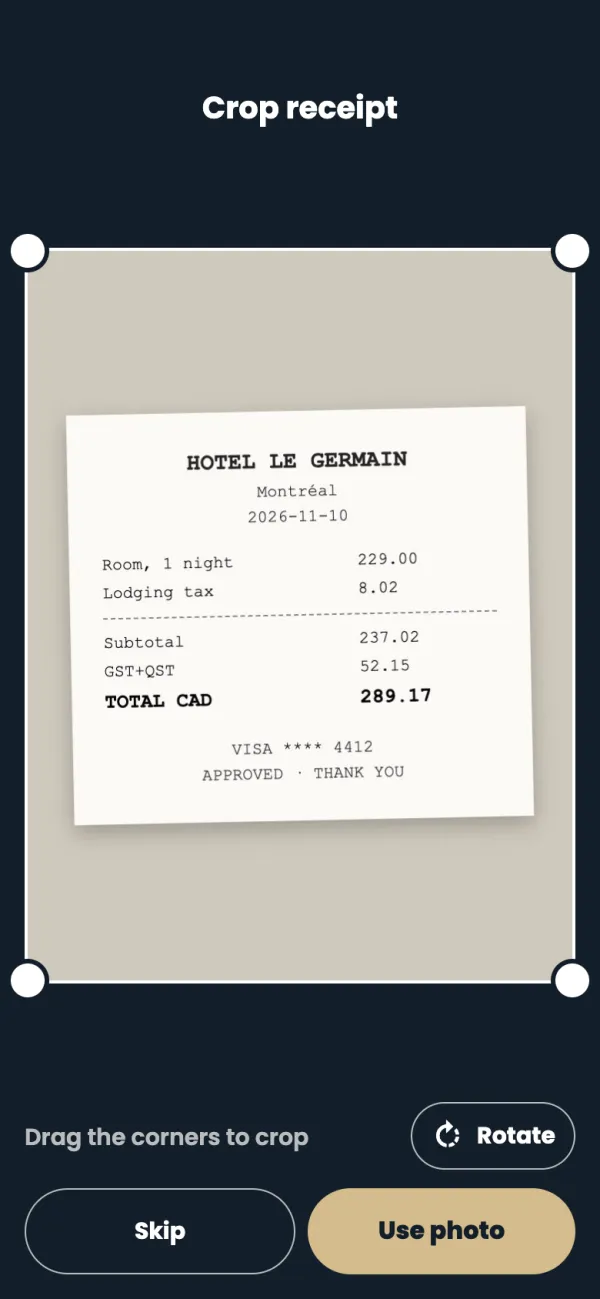
Drag the corners so the receipt fills the frame, then tap Use photo.
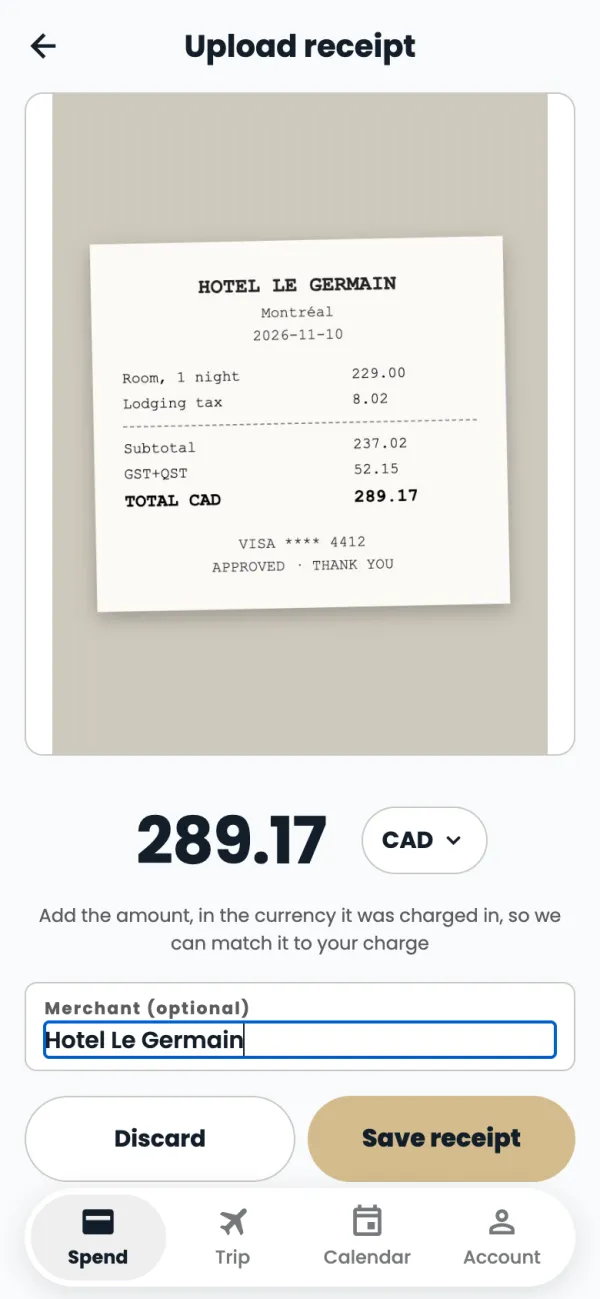
Type the total from the receipt, and tap the currency to change it if needed. Use the currency you were charged in: that's how the app finds the matching charge.
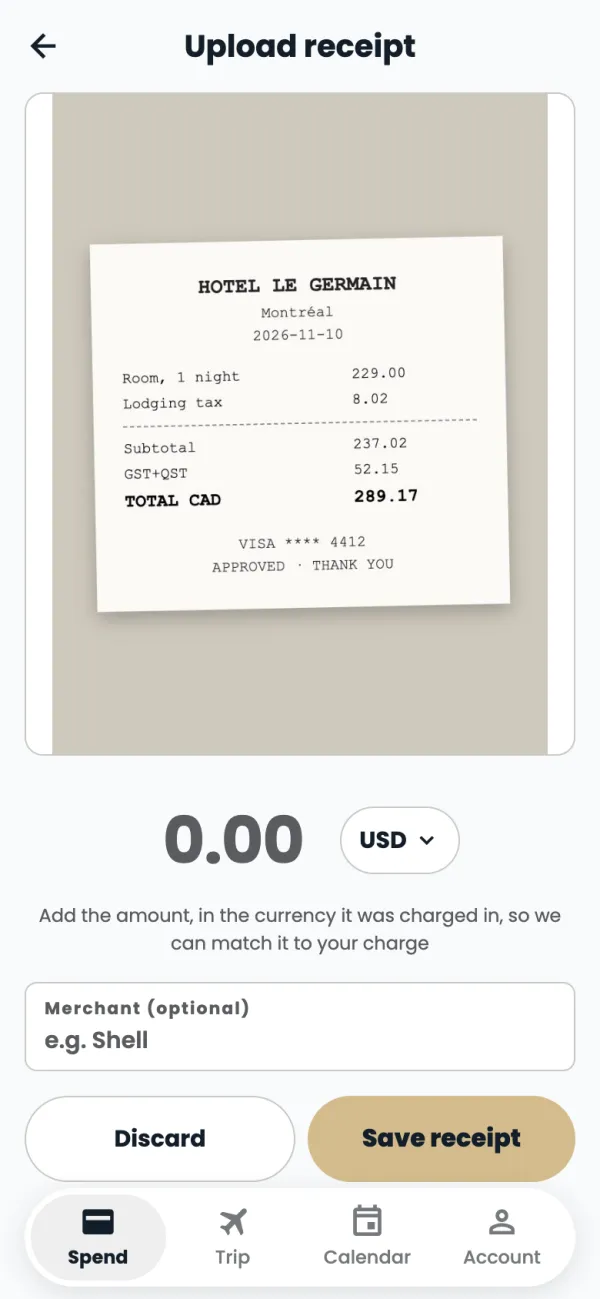
Add the merchant if you like, then tap Save receipt.
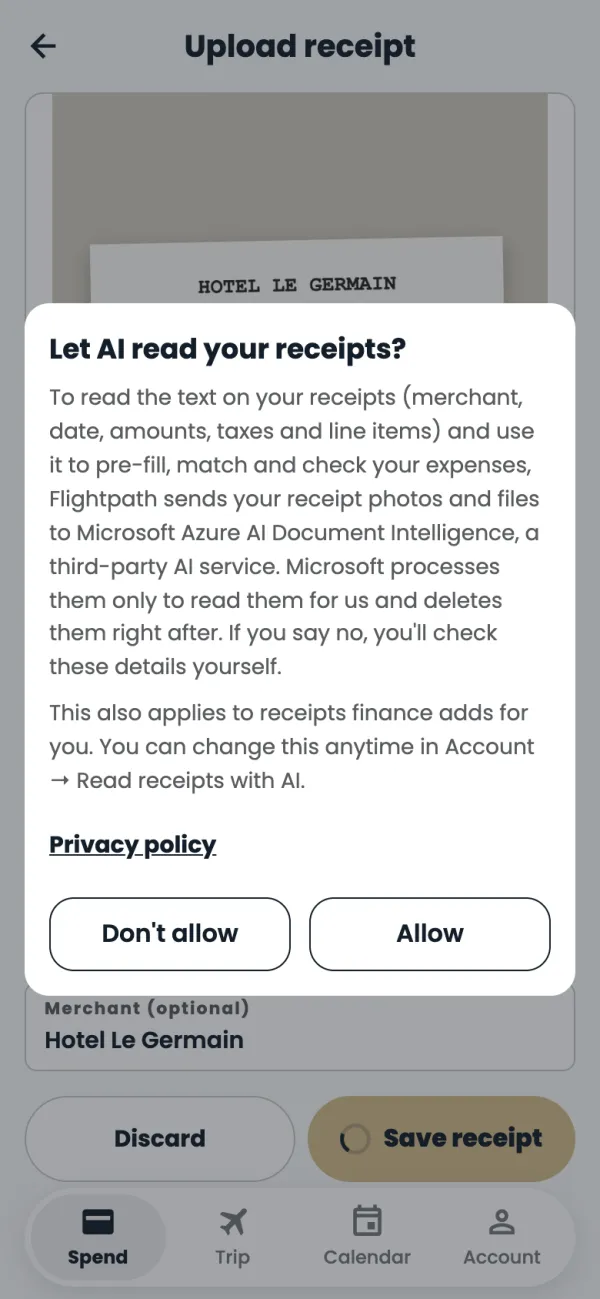
The first time, the app asks Let AI read your receipts? Allow lets it read the amount, currency and merchant so the receipt can be matched; with Don't allow you type them yourself. Either is fine. It never chooses a category or tax rate.
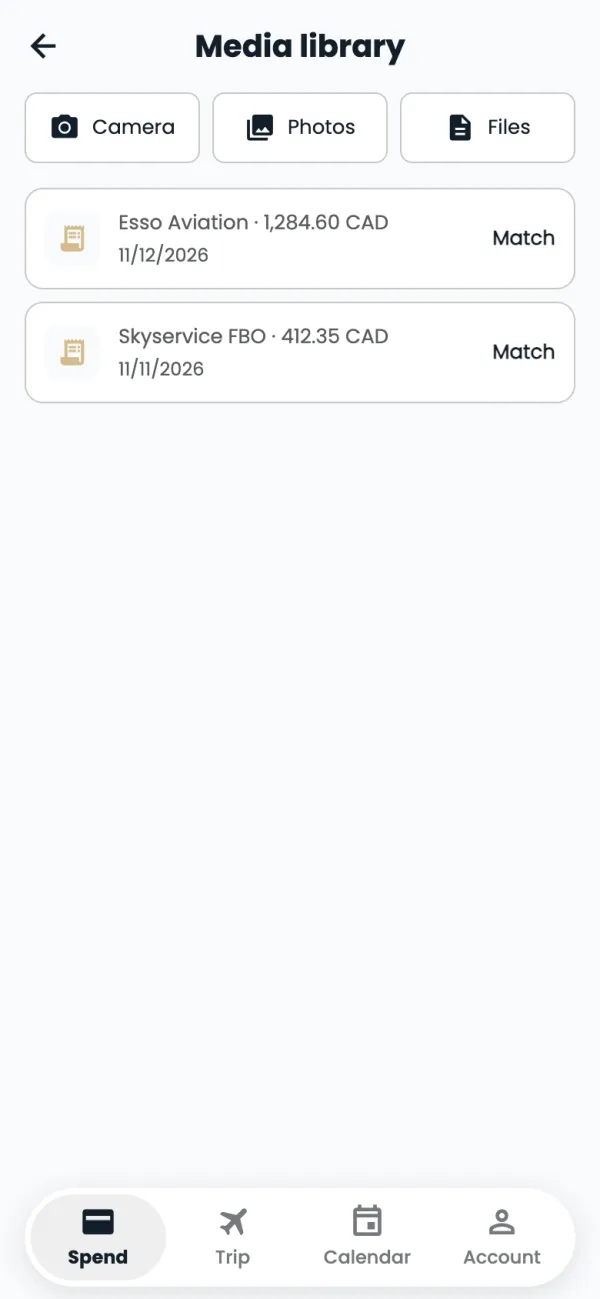
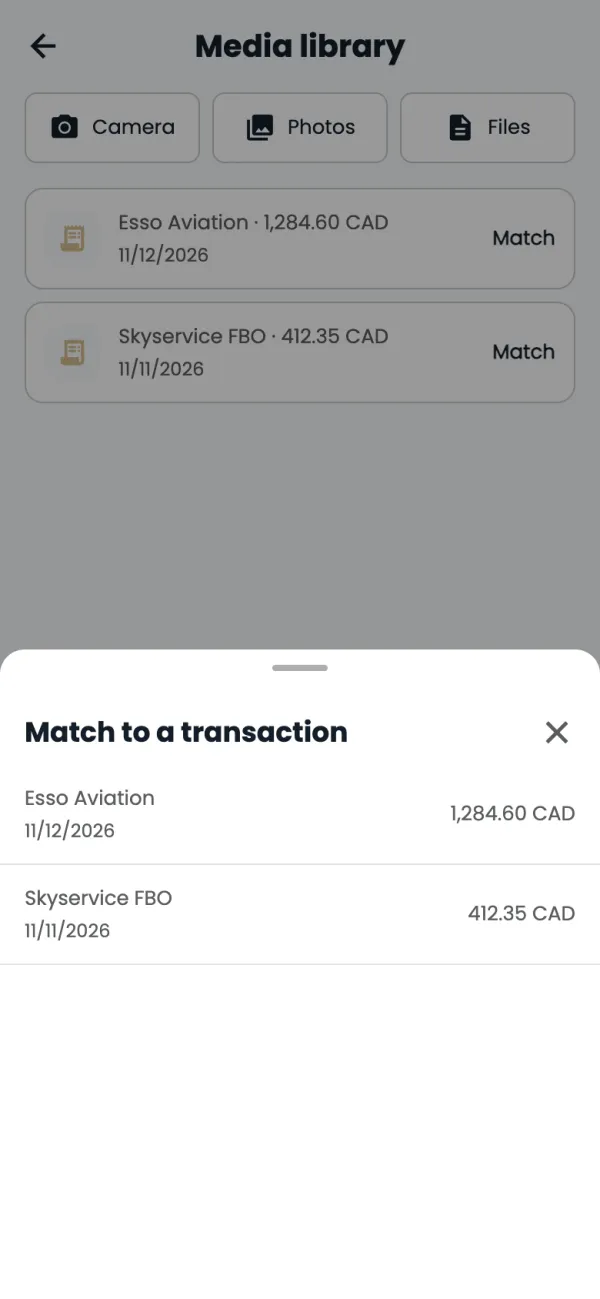
If the charge is already there, the receipt is matched and attached straight away. Receipts still waiting stay in Media library. To match one yourself, tap Match.
Pick the card charge it belongs to. The receipt moves onto that charge.
Good to know
- No signal? The receipt is saved on your phone and uploads by itself when you're back online.
- The app matches on the amount and currency, and uses the date to break a tie.
- Open Media library any time from the receipts icon at the top of Spend.
- You can change your answer about AI later in Account, under Read receipts with AI.
Common questions
I took several photos of one long receipt.
Pick them all from Photos, then tick the box to keep them together as one receipt.
It didn't match.
Check the amount and currency match the card charge exactly. If they do, tap Match and pick the charge yourself.
Still stuck? Email or call Flightpath crew app support: crewapp@flightpathair.com · 1-866-640-9712.