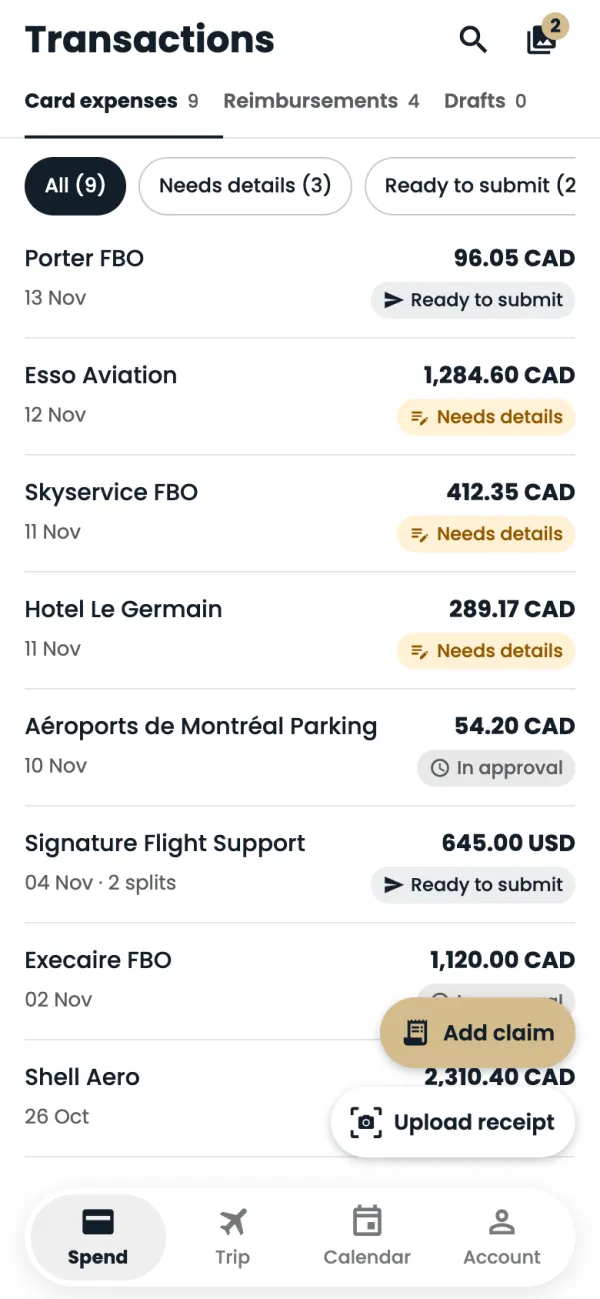
Open Spend. Your card charges arrive under Card expenses without you doing anything. Your claims are under Reimbursements, and claims you haven't finished are in Drafts. Swipe left or right to move between them.
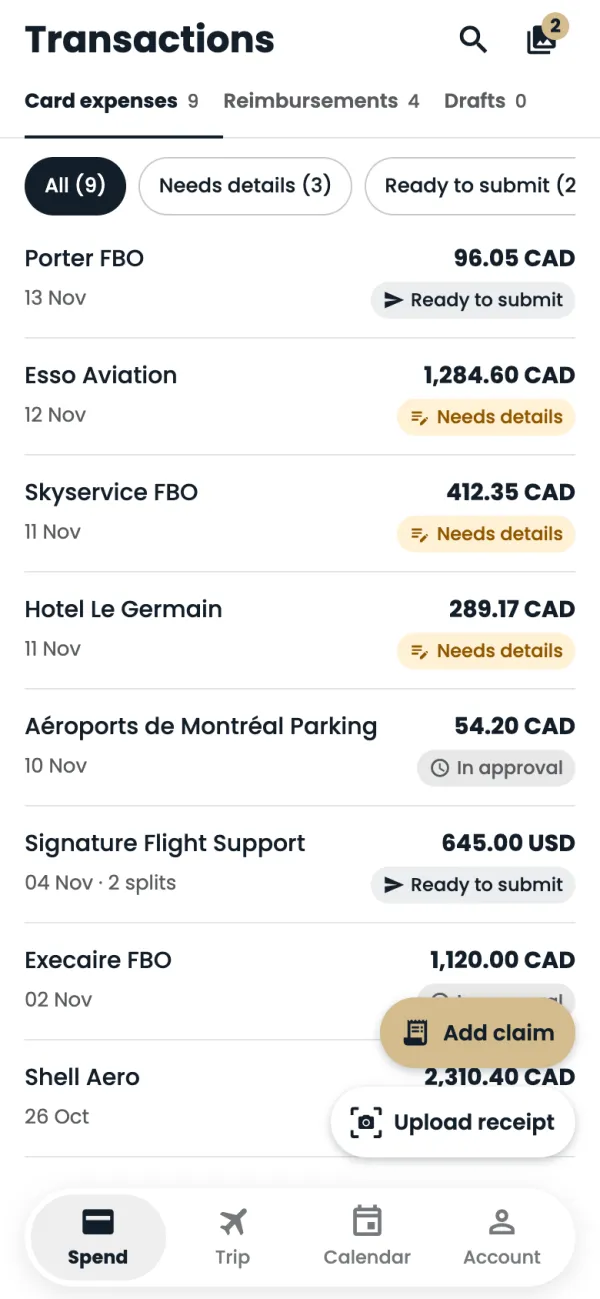
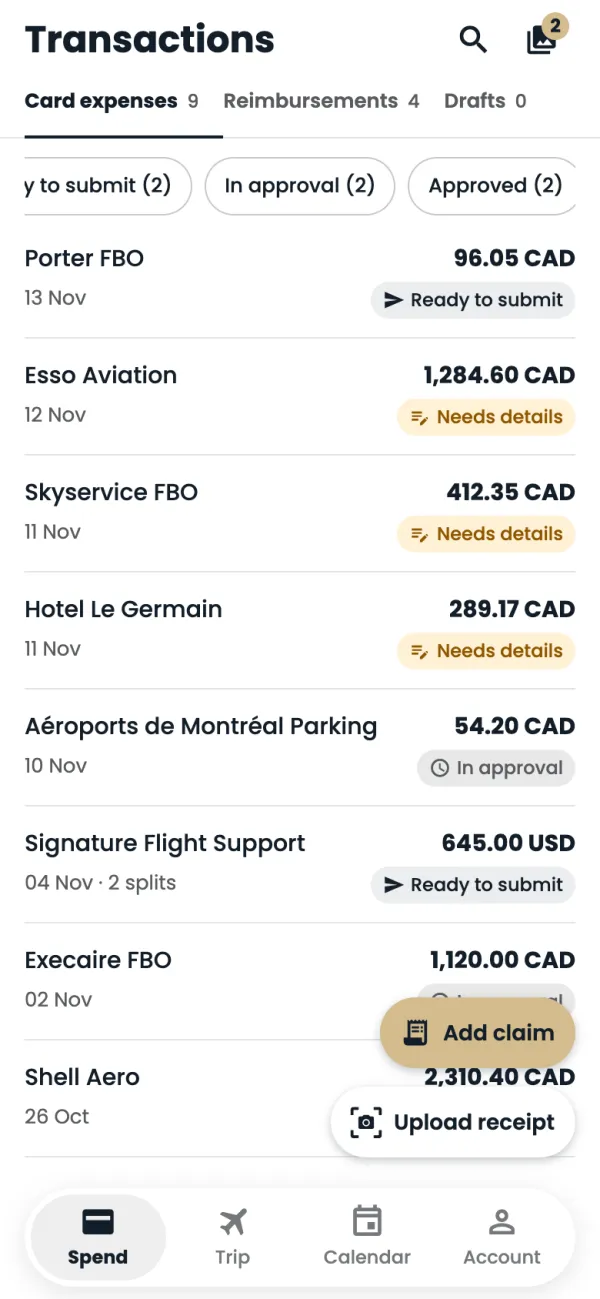
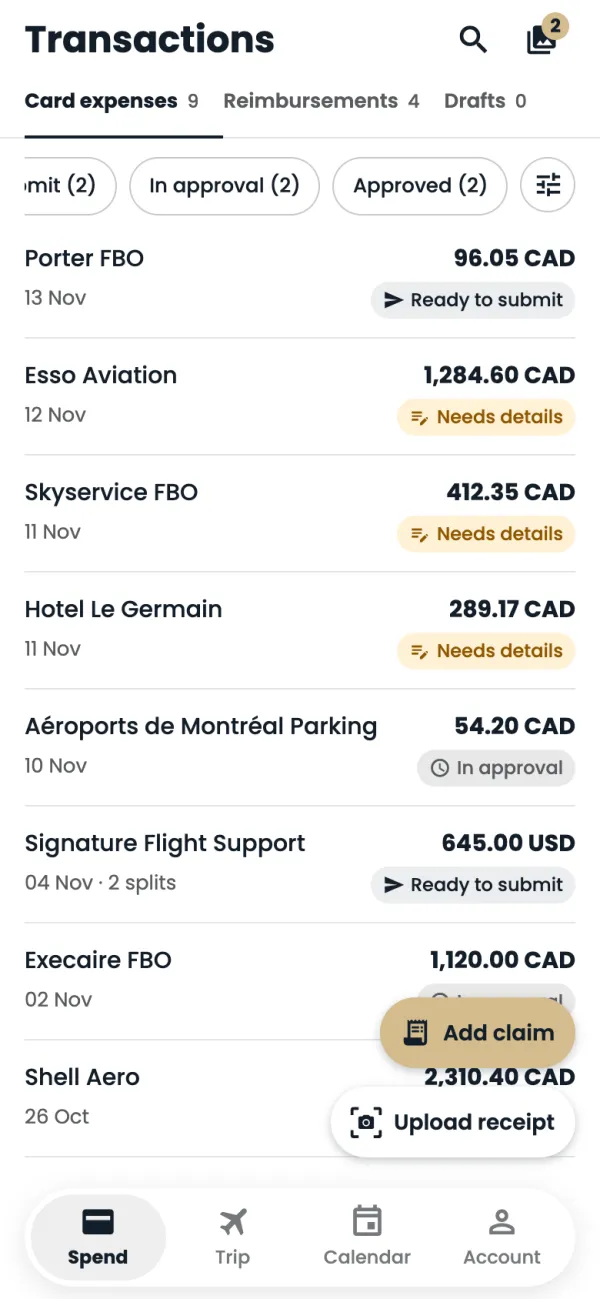
Tap a status to filter the list: Needs details, Ready to submit, In approval or Approved. All shows everything.
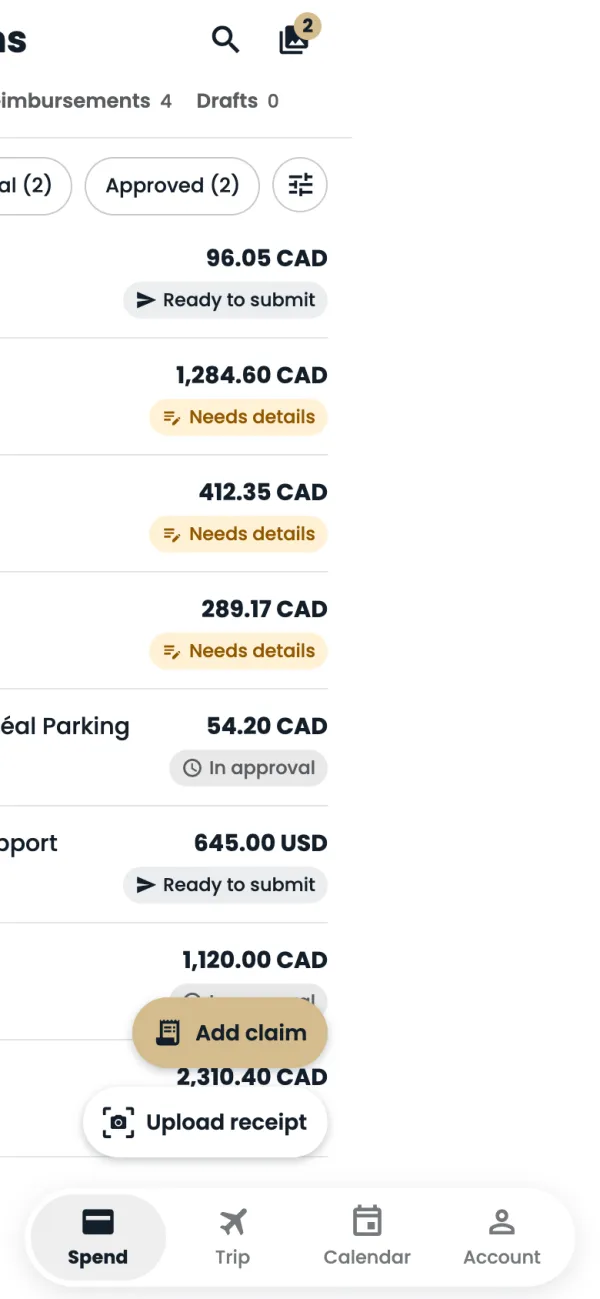
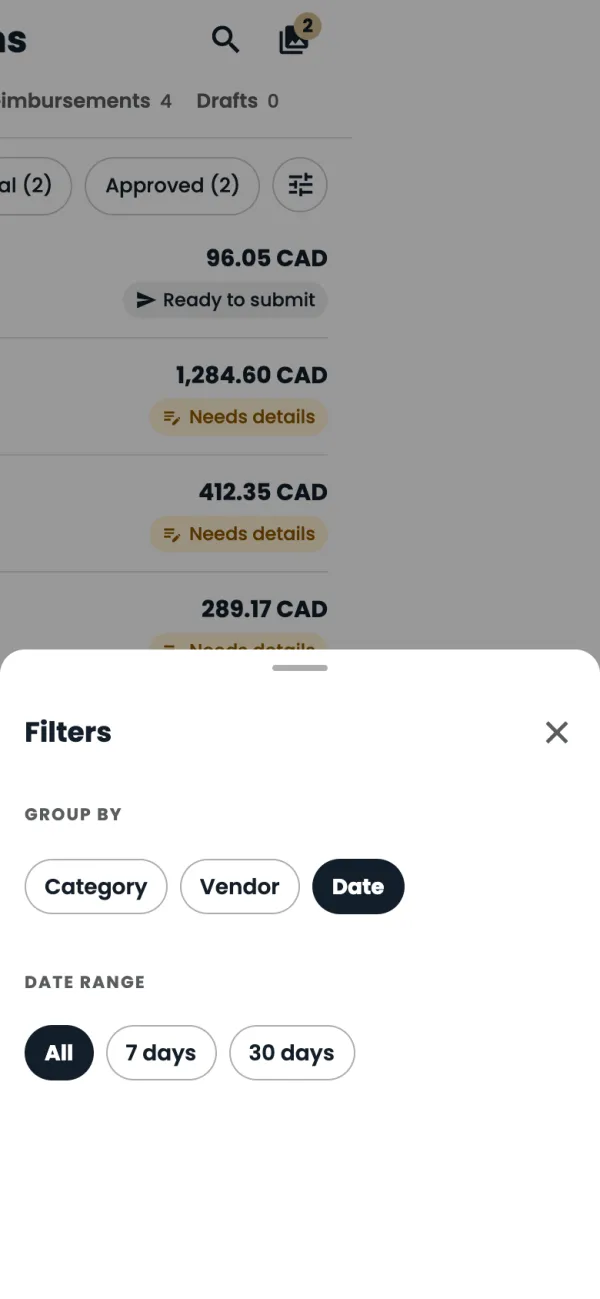
Tap the filter button to change how the list is grouped, or to show only the last 7 days or 30 days.
Under Group by, pick Category, Vendor or Date. The app remembers your choice.
Tap a charge to open it and add what's missing (see Add a receipt to a card expense).
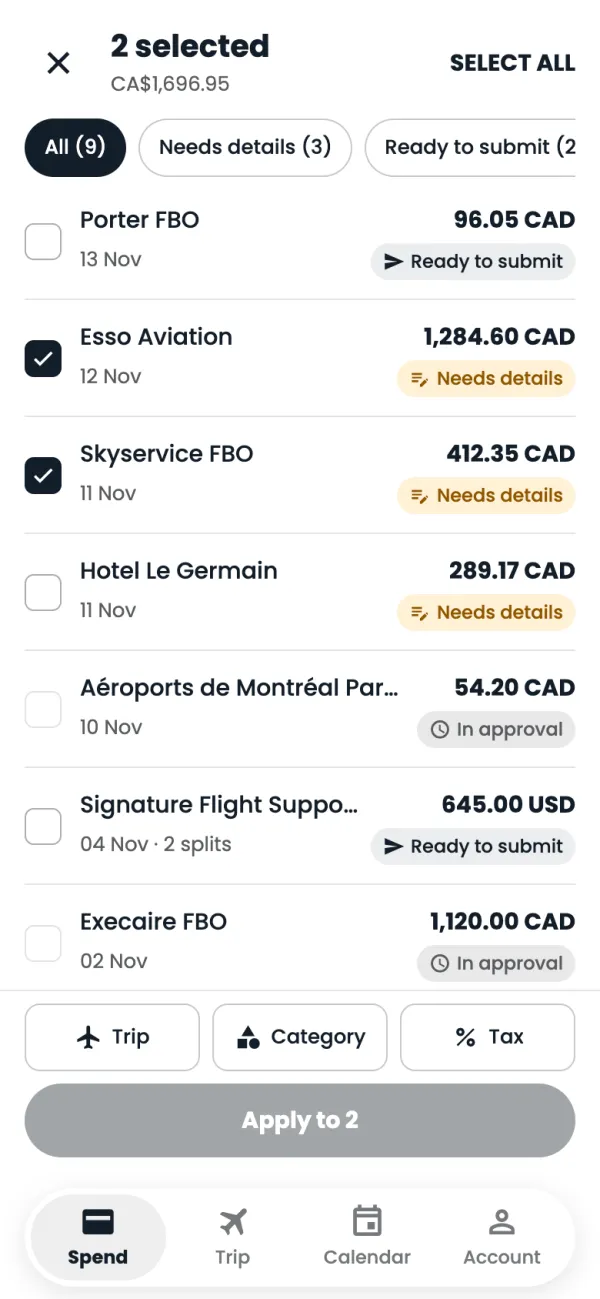
To do several at once, hold your finger on a charge until a tick box appears, then tap the others.
Set the Trip, Category or Tax for all of them, then tap Apply to {n}. If they're all ready, the button submits them instead.
Good to know
- Needs details: missing a receipt, trip, category or tax. Ready to submit: all done, waiting for you to tap Submit. In approval: with Finance. Approved: signed off.
- Pull the list down to refresh it.
- You can only select charges you haven't submitted yet.
Common questions
A charge I made isn't there yet.
Charges come from Airwallex and can take a few minutes to show up. You can upload the receipt now and it will be matched when the charge arrives.
What does the number on the receipts icon mean?
It's how many receipts in your Media library are still waiting to be matched to a charge.
Still stuck? Email or call Flightpath crew app support: crewapp@flightpathair.com · 1-866-640-9712.