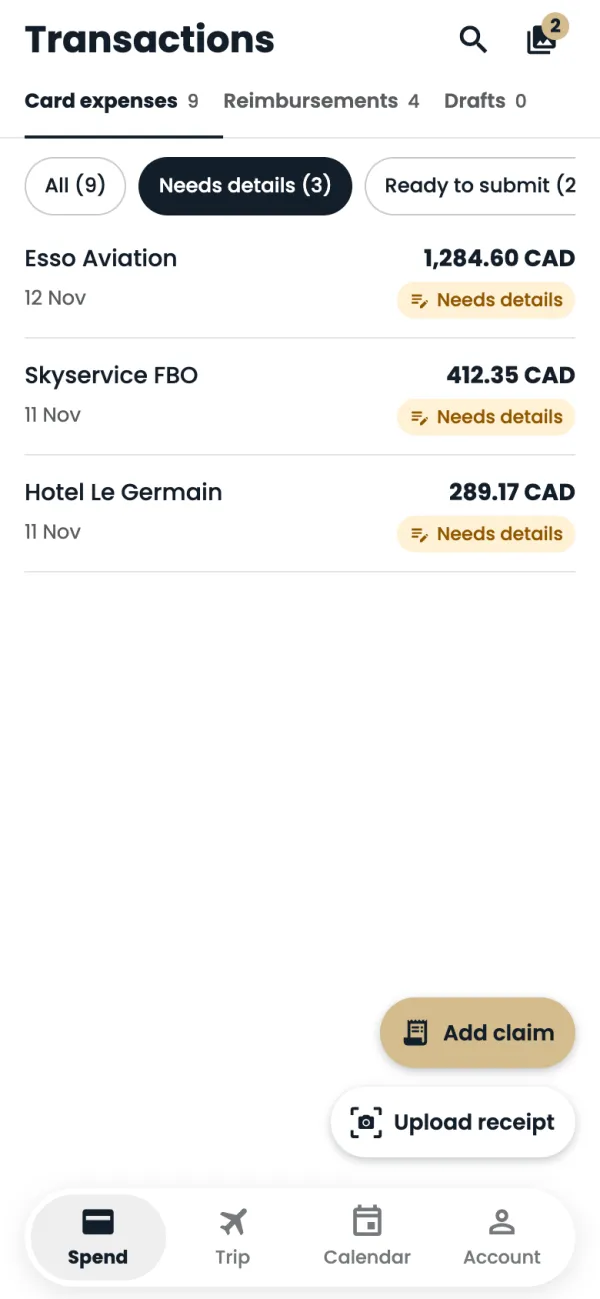
On Spend, tap Needs details to see the charges that still need something from you.
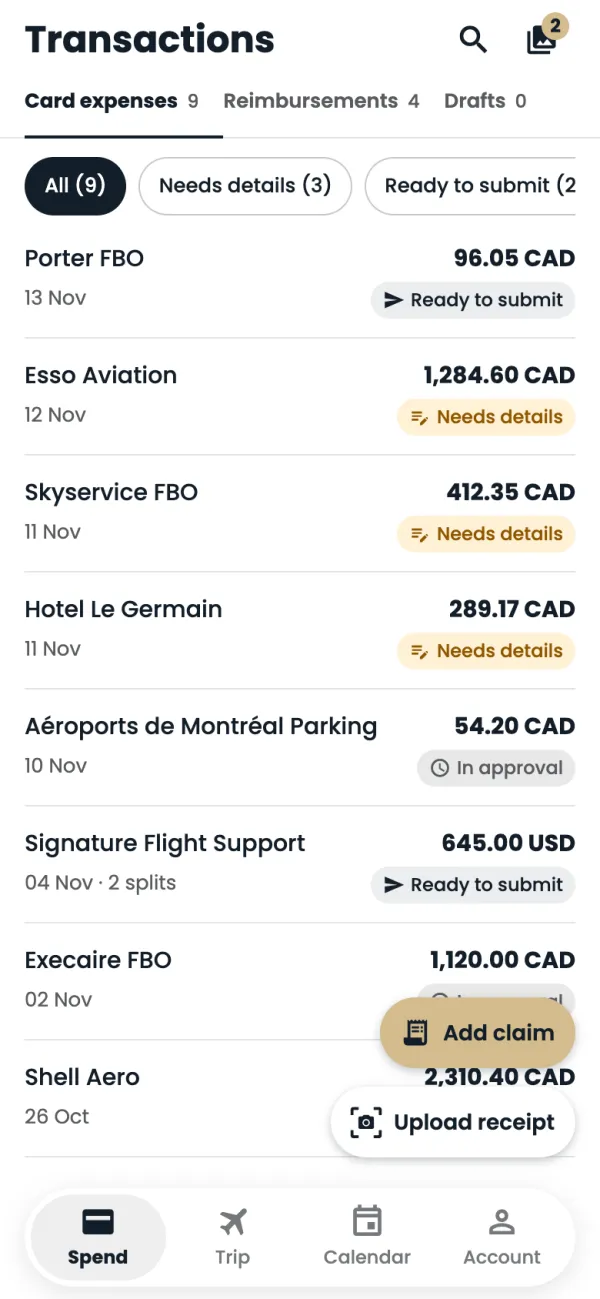
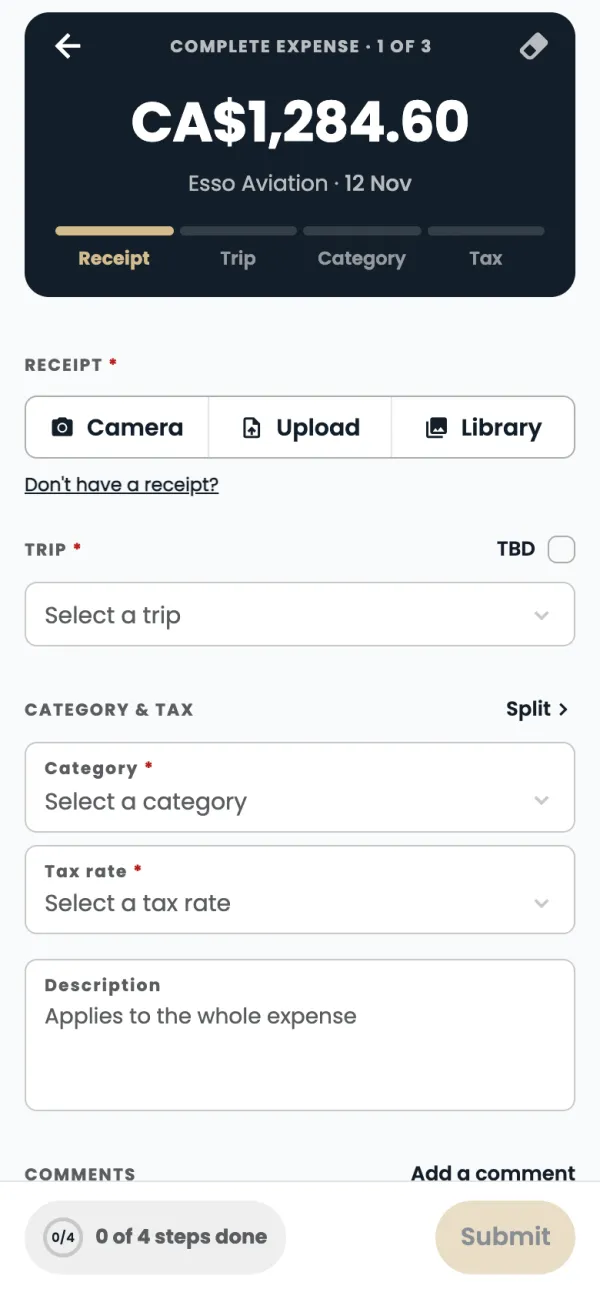
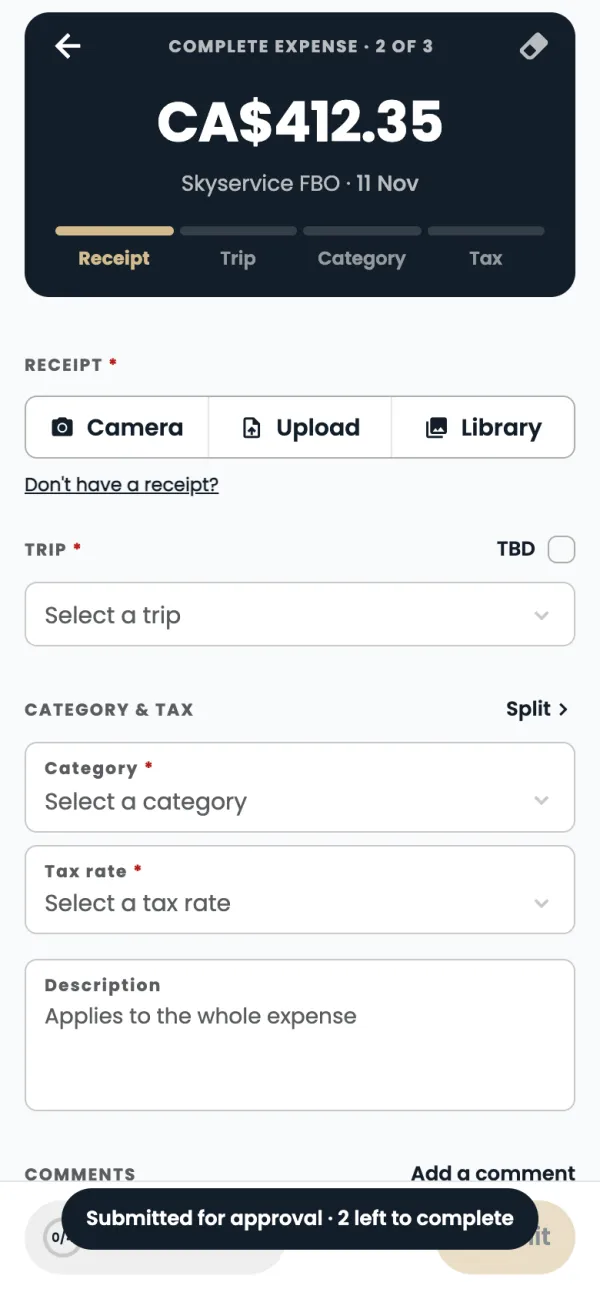
Tap a charge. It opens Complete expense, with four steps: Receipt, Trip, Category and Tax.
Add the receipt. Tap Camera to take a photo, Upload for a file, or Library for a receipt you already saved in the app.
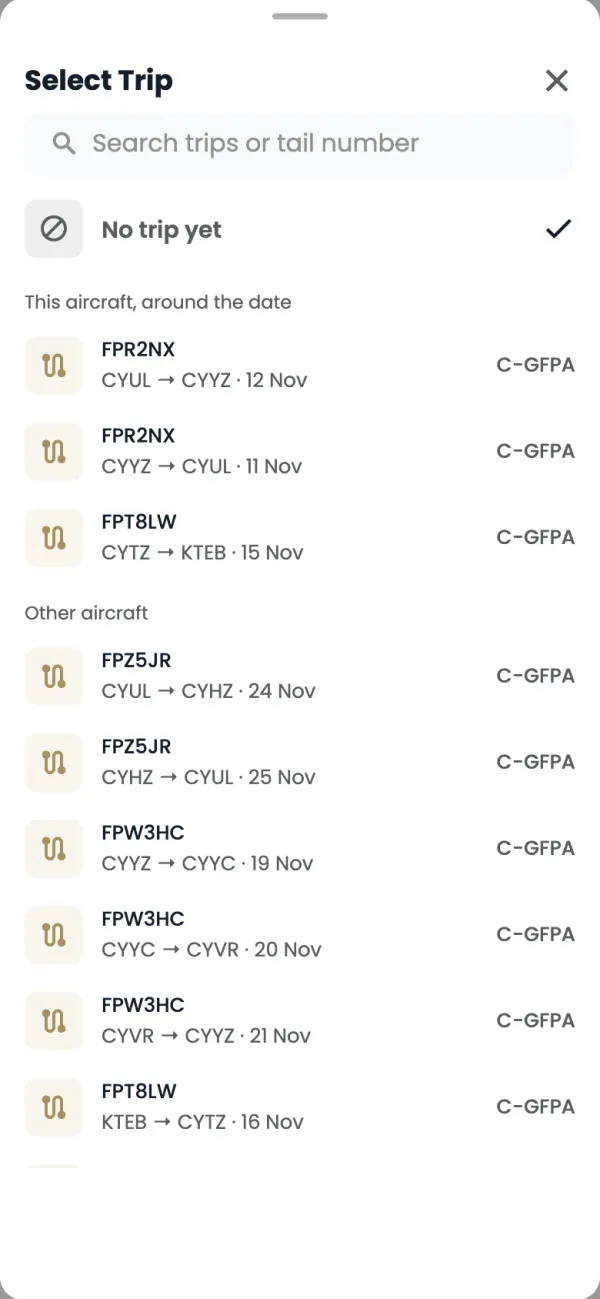
Tap Select a trip and pick the flight. Trips on your aircraft around the charge date are at the top. Not sure yet? Tick TBD.
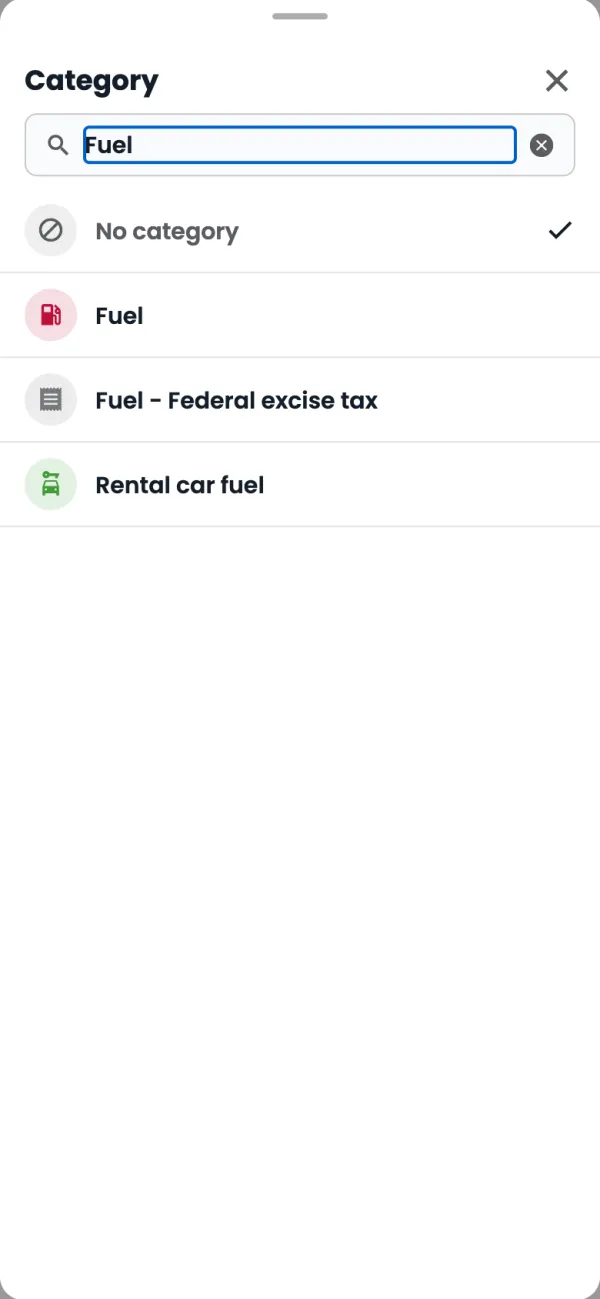
Tap Select a category. Type to search, then pick the category, here Fuel. The app may suggest one from your past expenses at the same vendor, but always check it and choose yourself.
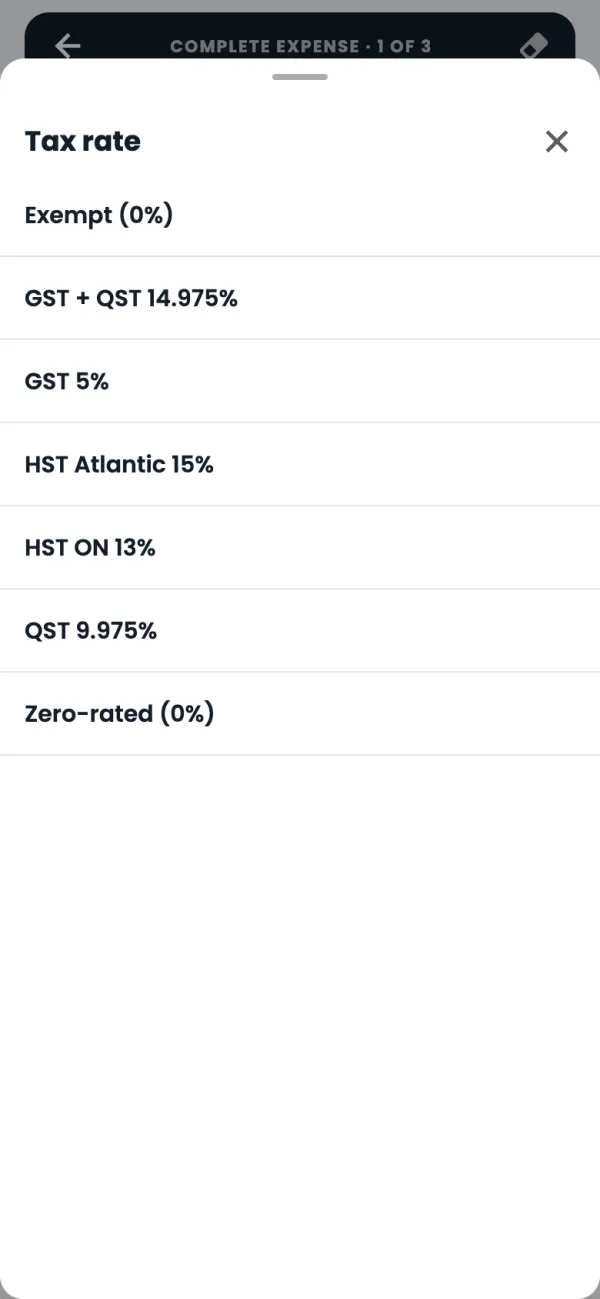
Tap Select a tax rate and pick the tax shown on the receipt.
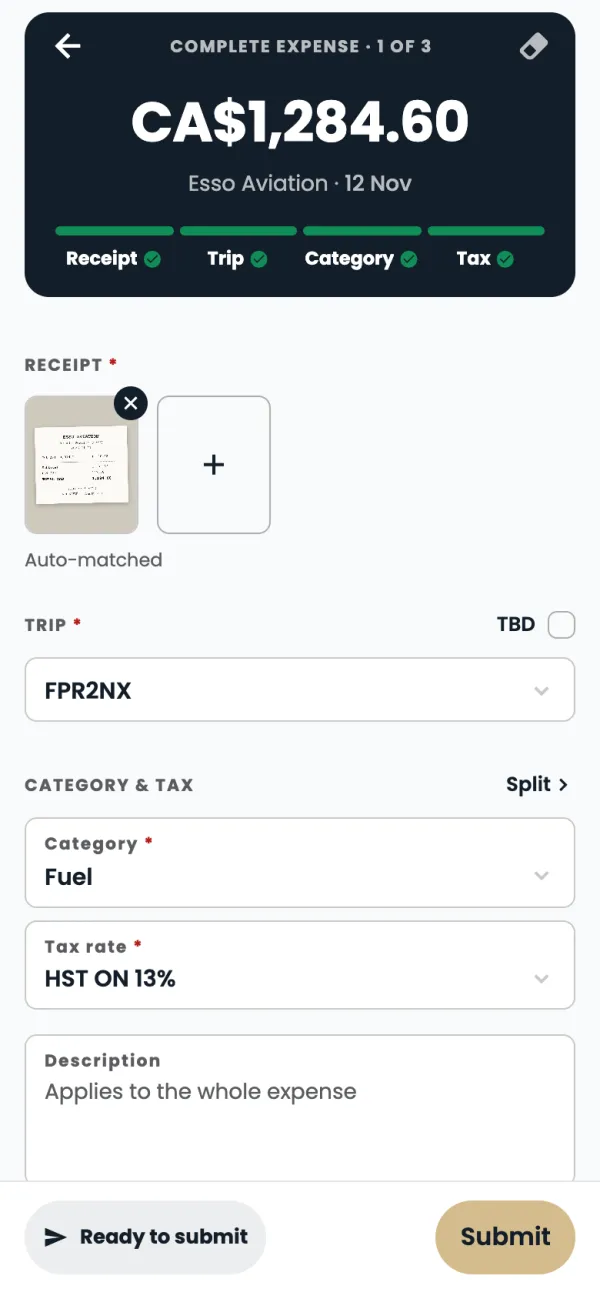
When all four steps are done you see Ready to submit. Tap Submit.
It goes to Finance as In approval, and the app opens your next charge so you can keep going.
Good to know
- Needs details means a charge is missing a receipt, trip, category or tax. The bar at the bottom shows how many of the four steps are done.
- No receipt? Tap Don't have a receipt?, pick a reason, then type your name to sign the declaration. It's attached in place of the receipt.
- One charge for several things, like handling and catering? Tap Split to divide it across categories.
- Swipe left or right on Complete expense to move between charges.
Common questions
I picked the wrong trip or category.
Change it any time before you tap Submit. Once it's In approval, open it and tap Edit (it comes back out of approval), fix it, then submit it again.
Does the app fill this in from my receipt?
The amount, date and vendor already come from your card, so there's nothing to fill in. If you allow Read receipts with AI, the app reads the receipt so you can check it matches the charge, uses it to help suggest the trip, and fills in the vendor only when the charge came in as an unknown merchant. It never chooses the category or the tax rate: always pick those yourself.
Still stuck? Email or call Flightpath crew app support: crewapp@flightpathair.com · 1-866-640-9712.